
Download Duplicate Zapper – Fast, Free Duplicate File Cleaner for Windows & Mac
Overview
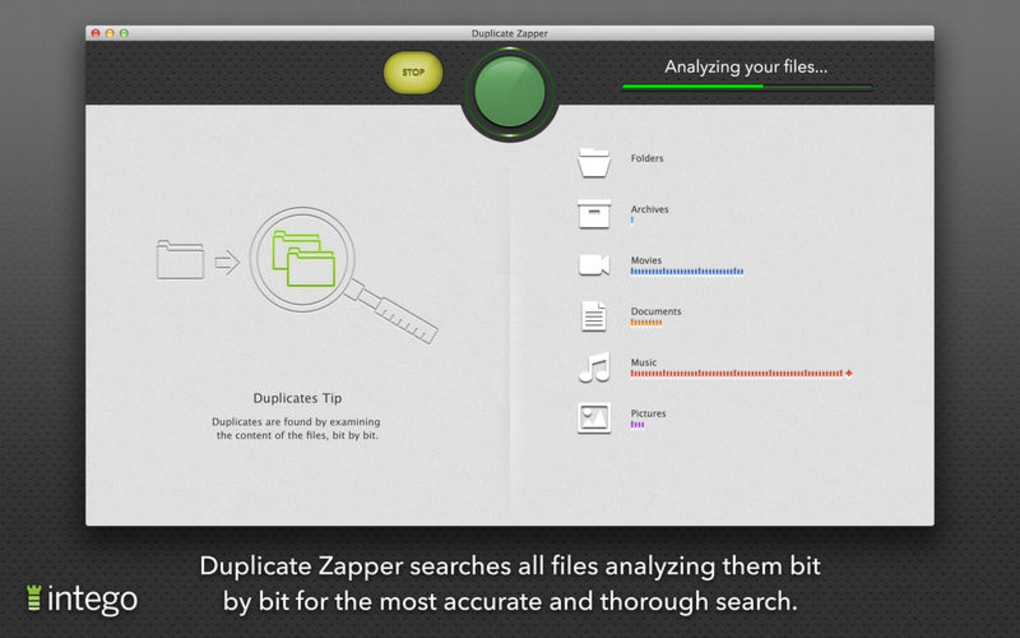
Duplicate Zapper is a lightweight yet powerful utility designed to scan your hard drive, locate duplicate files, and help you reclaim valuable storage space. Whether you’re a casual home user overwhelmed by endless photos, music tracks, and documents, or a professional managing large project folders, Duplicate Zapper offers a straightforward way to “zap” unnecessary copies. The app works by generating cryptographic hashes for each file it encounters, then comparing those hashes to spot identical content regardless of filename or location.
While the scanning process is intentionally thorough, it can feel a bit slow on massive drives—a trade‑off many users accept for accuracy. One common criticism is that the interface sometimes hides the exact path of a duplicate, requiring you to dig deeper to verify which files to keep. Nonetheless, the core promise—freeing up gigabytes of space with a single click—remains solid.
Duplicate Zapper runs on both Windows and macOS, providing a unified experience across platforms. It’s free to download, receives regular updates to stay compatible with the latest OS releases, and employs secure file handling to ensure that no data is corrupted during the deletion process. In short, if you’re looking for a reliable, no‑frills duplicate file finder that respects your privacy, Duplicate Zapper is worth a try.
Key Features
- Hash‑Based Scanning: Uses MD5/SHA‑1 checksums to detect exact duplicates, ignoring filename differences.
- Multi‑Platform Support: Native versions for Windows 10/11 and macOS Monterey and later.
- Selective Deletion: Choose which copies to keep; the app never deletes without explicit user confirmation.
- Preview Mode: View thumbnail previews for images and quick file info for documents before removal.
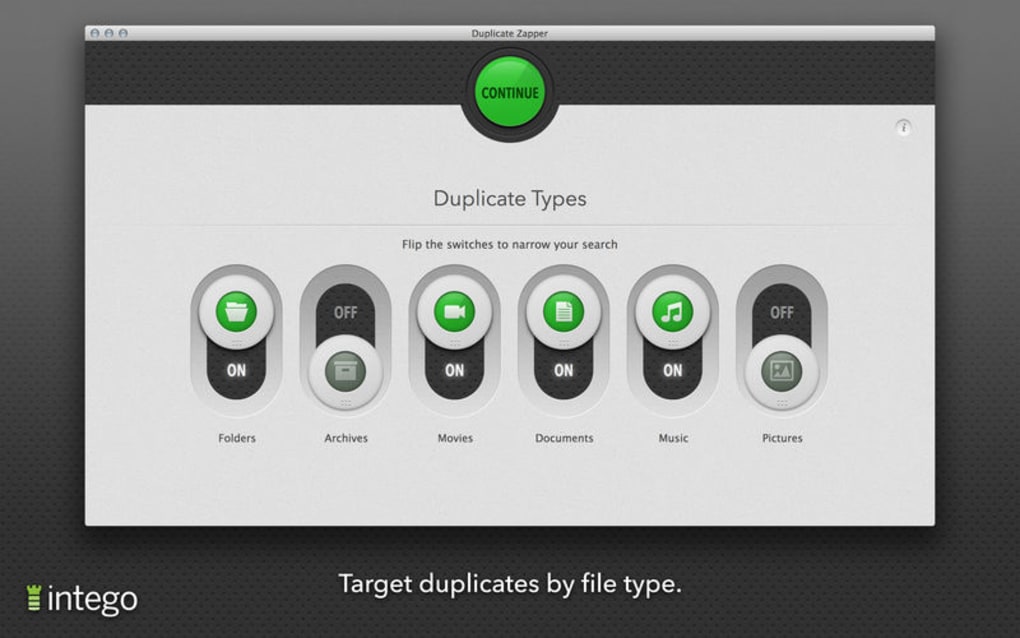
- Customizable Filters: Exclude specific folders, file types, or size ranges to focus the scan.
- Automatic Updates: Built‑in updater ensures you always have the latest performance improvements.
- Low System Impact: Runs in the background with minimal CPU and RAM usage, even during large scans.
- Secure Deletion Option: Overwrites files with random data before removal for added privacy.
Installation & Usage Guide
Downloading and Installing on Windows
1. Visit the official Duplicate Zapper website and click the Download for Windows button. The installer is a small .exe file (≈8 MB).
2.
After the download completes, double‑click the installer. Windows will prompt you to confirm the app’s origin; choose “Run” and accept the user‑account control (UAC) request.
3. Follow the on‑screen wizard: accept the license agreement, select the destination folder (default is C:\Program Files\Duplicate Zapper), and click “Install.”
4.
Once installation finishes, launch the program from the Start menu or desktop shortcut.
5. The first run triggers a brief “Welcome” tour that explains the main buttons—Scan, Preview, and Delete.
Downloading and Installing on macOS
1. Click the Download for macOS link; a .dmg file will be saved to your Downloads folder.
2. Open the .dmg and drag the Duplicate Zapper icon into the Applications folder.
3. macOS may warn you that the app is from an unidentified developer.
Open System Preferences → Security & Privacy**, click “Open Anyway.”
4. Launch Duplicate Zapper from Launchpad or the Applications folder. The first launch will ask for permission to access your files—grant full‑disk access for the most thorough scan.
5.
The onboarding screen walks you through setting up scan profiles and choosing default deletion behavior.
Running a Scan and Managing Results
After launching, you’ll see a clean dashboard with three primary actions. Click Scan to open the folder selector. You can choose a single directory, an entire drive, or multiple locations by holding Ctrl (Windows) or ⌘ (macOS).
Optional filters let you ignore files under a certain size or specific extensions (e.g., .tmp, .log). Press Start Scan and let Duplicate Zapper work through the files; progress is shown as a percentage and an estimated time remaining.
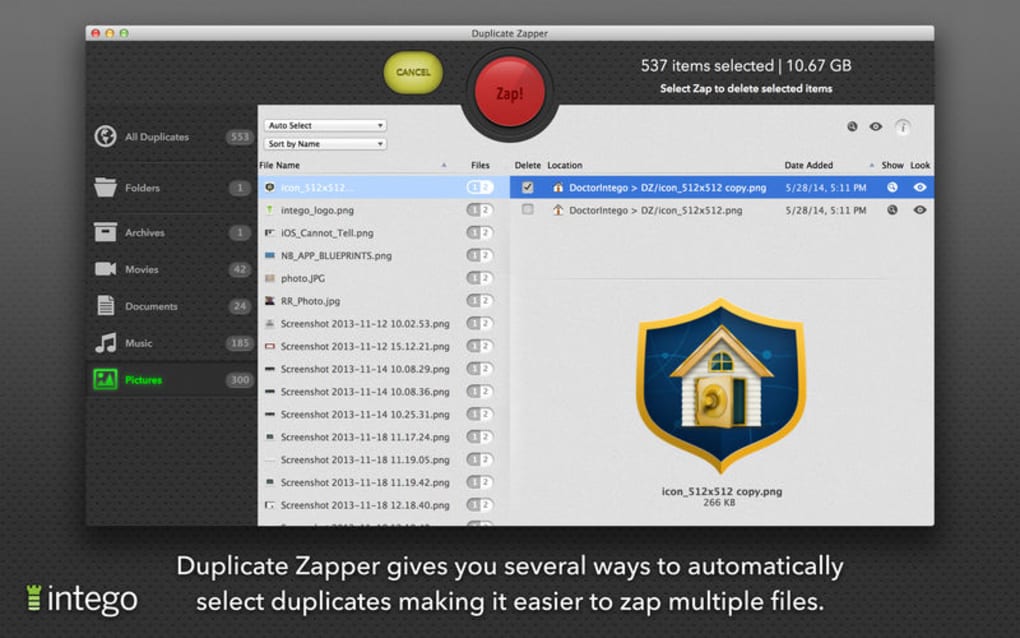
When the scan finishes, results appear in a sortable table. Each row shows the file name, size, and a small icon (preview for images).
Clicking a row expands a panel with the full path of each duplicate, addressing the common complaint of hidden locations. You can tick checkboxes next to the copies you wish to delete, or use the “Keep Largest” and “Keep Newest” shortcuts for bulk decisions. Once satisfied, press Delete Selected.
The app will ask for final confirmation, then move the chosen files to the system recycle bin (or to a secure “Shred” folder if you enabled secure deletion). A completion dialog summarizes the space reclaimed—often several gigabytes with a single pass.
Compatibility, Pros & Cons
Supported Operating Systems
Duplicate Zapper is built with native code for each platform, ensuring smooth performance on modern hardware. Officially supported environments include:
- Windows 10 (64‑bit) and Windows 11
- macOS 12 Monterey, macOS 13 Ventura, and later
- Basic command‑line version for Linux (community‑maintained, not covered by official support)
Minimum system requirements are modest: 2 GB RAM, 200 MB free disk space for installation, and a processor capable of running 64‑bit applications. The app runs in both dark and light UI modes, matching the system theme.
Pros
- Accurate hash‑based detection eliminates false positives.
- Free to download with regular security updates.
- Clear preview and path information for each duplicate.
- Low resource usage, making it suitable for older machines.
- Secure deletion option for privacy‑conscious users.
Cons
- Scanning can be slow on very large drives or network shares.
- Initial UI may feel minimalistic for power users seeking advanced reporting.
- No built‑in cloud storage integration (e.g., OneDrive, Google Drive).
- Path display requires expanding each result, adding an extra click.
- Linux version is community‑maintained and lacks official support.
Frequently Asked Questions
Is Duplicate Zapper completely free or does it have a paid version?
Duplicate Zapper is 100 % free for personal use. The developer funds the project through optional donations, but there is no premium tier or hidden fees.
Can I recover files after I delete them with Duplicate Zapper?
Deleted files are moved to the system Recycle Bin (Windows) or Trash (macOS). As long as you haven’t emptied those containers, you can restore any mistakenly removed file.
Does the app support scanning external drives and USB sticks?
Yes. Duplicate Zapper treats any mounted volume as a regular folder, so you can scan external HDDs, SSDs, and USB flash drives without additional configuration.
How does Duplicate Zapper protect my privacy while scanning?
All processing happens locally on your computer. The app never uploads file contents or hashes to a remote server, ensuring that your data stays private.
Can I schedule automatic scans?
The current free version does not include a built‑in scheduler, but you can use Windows Task Scheduler or macOS Automator to launch Duplicate Zapper with command‑line arguments at specific times.
Conclusion & Call to Action
Duplicate Zapper delivers exactly what its name promises: a fast, secure, and free way to locate and eliminate duplicate files that clutter your storage. While the scanning speed may lag on massive archives, the accuracy, low system footprint, and transparent deletion workflow make it a solid addition to any PC or Mac toolbox. Whether you’re cleaning up a photo library, consolidating project files, or just trying to free up space for a new game, Duplicate Zapper gives you the confidence to delete without fear of losing important data.
Ready to reclaim those lost gigabytes? Download Duplicate Zapper now and start the cleanup process today. Remember to keep the app updated for the best performance and security enhancements.







